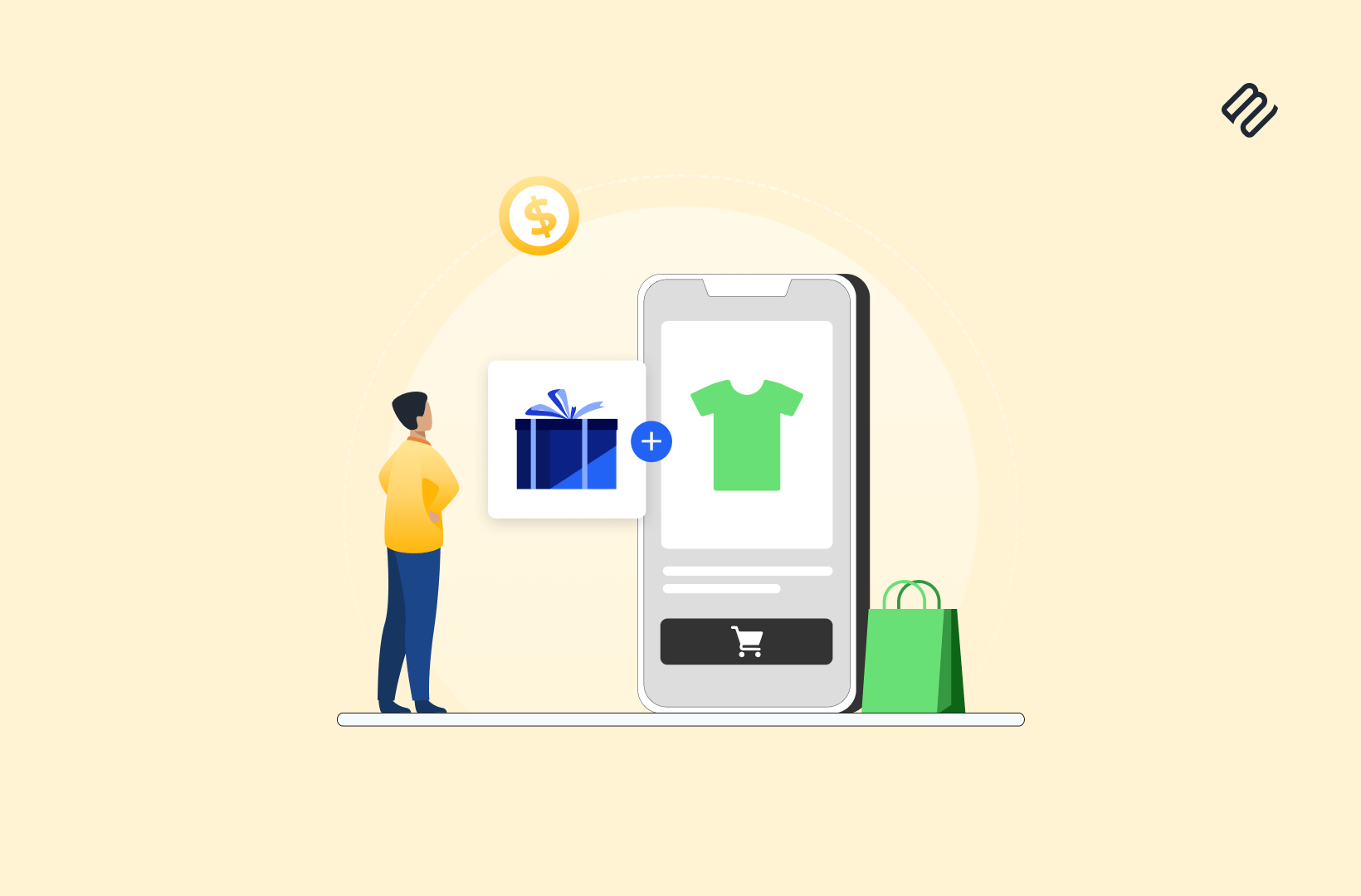
Free gifts are the most popular promotion types in eCommerce — and Shopify makes it look simple enough to set up with its native Buy X, Get Y offer in its Discounts feature.
But the moment you test it, you hit a frustrating roadblock: Shopify doesn’t actually add the free gift (Y) to the cart.
The discount only applies if both products — X and Y — are already in the cart.
That means unless the customer manually adds the free gift themselves, the promotion silently fails. The shopper sees no free gift in the cart.
The good news? You can fix it entirely on the front end.
In this guide, we’ll show you two simple, no-app methods to make Shopify’s “Buy X Get Y” behave the way customers expect:
- Popup method: When X is added, show a “Free Gift Unlocked” modal where customers can pick their Y variant (like color or size) and add it to cart.
- Auto-add script: When X is added, automatically add Y in the background — instantly triggering the discount.
Both methods ensure that the discount applies correctly at checkout and the free gift actually appears in the cart — no apps needed.
Approach 1 — Show a “Free Gift Unlocked” Popup
If your free gift (Y) comes in different variants — such as color, size, or material — the most seamless experience is to prompt the customer with a popup after they add the qualifying product (X) to the cart.
Instead of automatically adding the gift, you show a modal that celebrates the unlock and lets the customer select their preferred variant. This makes the reward feel intentional and exciting — not just another product quietly dropped into their cart.
How It Works
- Customer adds the qualifying product (X) to their cart.
- A popup modal appears on the same page.
- The popup displays Product Y (the free gift) with a message such as: 🎁 You’ve unlocked a free gift!
Choose your color and add it to your cart to activate the discount. - The customer selects a variant (if applicable) and clicks “Add to Cart.”
- Because both X and Y are now present in the cart, Shopify’s Buy X Get Y discount automatically applies at checkout.
Common Challenge — Popup Gets Ignored
In real-world testing, a common issue is that customers often close the popup without actually adding the free gift. Maybe they’re in a rush, or they think the popup is just another promotion. Either way, they miss the reward — and you lose a conversion opportunity.
A Few Solutions
There are multiple ways to handle this gracefully without disrupting the shopping experience:
- Redisplay the popup after a short delay:
If the customer closes it once, you can show it again after a set time (e.g., 15–30 seconds). However, this approach can feel repetitive and intrusive, so it’s best used sparingly. - Add a cart message with persuasive copy:
Show a small banner or line item in the cart drawer that says something like: “🎁 You’re eligible for a free gift — add it now before checkout!”
This gives customers a second chance to claim the reward and adds gentle urgency. - Auto-add a default variant if the popup is closed:
If you don’t want customers to miss out completely, you can add the most popular or default variant automatically when they close the popup. Pair this with a quick confirmation like “We’ve added your free gift — change variant anytime.” - Experiment with popup design:
Subtle design tweaks can improve completion rates dramatically. For example:- Replace the close icon with a clear “No, thanks” button beside the “Add Free Gift” CTA.
- Change the CTA text from “Add to Cart” to “Add Free Gift” for better clarity.
- Use celebratory visuals and microcopy (confetti, emoji, animations) to make the popup feel more like a reward than a sales pitch.
Why This Approach Works
This method works best when your gift has multiple versions (like size or color) and you want the customer to choose. It adds a layer of interactivity and excitement, confirms the offer visually, and keeps everything Shopify-native — using only Liquid and JavaScript already present in your theme.
It’s a frictionless experience that reinforces your brand’s attention to detail and makes the reward feel earned rather than automated.
Approach 2 — Automatically Add Free Gift
If your free gift has no variants, or you want a completely hands-off experience, this second approach is ideal.
Here, your theme makes a lightweight background request to Shopify’s cart endpoint to insert the free gift (Y) as soon as the qualifying product (X) is added. Once both are in the cart, Shopify’s Buy X Get Y discount can automatically apply at checkout.
The Endpoint
Path: /cart/add.js
Method: POST
Format: JSON request, JSON response
You send:
- The variant ID of the free gift (Y)
- The desired quantity (usually 1, or capped per promo rules)
- Optional line item properties (like
_gift: true) to identify the gift later
You trigger this right after X is added — but only if Y isn’t already in the cart.
How to keep it clean and idempotent
Your logic should:
- Check the cart’s current state (via
/cart.js). - Confirm whether X is present and how many.
- Confirm whether Y is present and how many.
- Calculate the desired Y quantity (e.g., 1 per order, or 1 per 2 X items).
- Add Y only if it’s missing or short, and remove it if X is gone.
That’s it — clean, reliable, and loop-free.
UX touches that help
A few subtle interface cues can make this experience feel polished and transparent:
- Brief “Adding gift…” micro-state, then “Gift added!”
- A small gift badge or dashed note in the side cart explaining why the price is $0 (or discounted at checkout).
- If the shopper closes any prior popup or skips the gift, keep a gentle reminder in the cart with a “Claim gift” button that re-runs your check and, if eligible, triggers the add.
These micro-interactions make your automation feel human and celebratory, not mechanical.
Why this works
Shopify’s discount engine only applies a Buy X Get Y deal once both products exist in the cart. It doesn’t add Y automatically — and that’s where your /cart/add.js script bridges the gap.
By inserting Y programmatically the moment X is added, you ensure the discount triggers every time. No app, no custom backend — just smart front-end logic.
This approach works perfectly for single variant SKUs when you don’t need to allow customers to choose a variant of the free gift. If you prefer to just add a default variant to the cart, this approach works fine.
Make Shopify’s “Buy X Get Y” Actually Work
Shopify’s built-in discount engine was never designed to handle this seamlessly.
By default, it doesn’t add the free gift automatically — and that single limitation often breaks an otherwise perfect promotion.
But with a few lines of front-end logic and smart theme customization, you can make the experience feel native, instant, and rewarding.
Whether you choose to show a “Free Gift Unlocked” popup (Approach 1) or silently add the gift in the background (Approach 2), both methods solve the same core problem:
✅ ensuring that the free gift (Y) is in the cart before checkout so Shopify’s discount rule can do its job.
The result?
A smoother shopping experience, a visible reward that boosts conversion, and no dependency on third-party apps or Plus-only features.
Need This Setup in Your Store? Let’s Build It Right.
If you want to:
- Make your “Buy X Get Y” offers actually apply automatically
- Add free gifts without installing another app
- Keep your theme fast, lightweight, and on-brand
Propellex can help.
We specialize in custom Shopify theme development, building native, app-free solutions that make promotions, side carts, and dynamic product flows work exactly the way you want.
Reach out today to get this implemented in your store and deliver a polished, conversion-friendly free-gift experience without relying on apps.
Read other Shopify tutorials:
Passing Shopify Product SKUs into Klaviyo Form Submissions
How I Removed the Header on a Shopify Page
How to Create a Custom Shopify Announcement Bar Without an App